Google Sheets is one of the most widely used tools for reporting, forecasting, and ad hoc analysis. Customer Success, Revenue Ops, and leadership teams rely on spreadsheets for QBR decks, board reports, renewal tracking, and account planning.
Customer Success Managers use Google Sheets to:
- Build custom renewal trackers
- Prepare QBR reports with live customer metrics
- Monitor risk scores across portfolios
- Combine Custify data with billing or support data
- Create executive summaries for leadership
The Custify Google Sheets Integration allows CSMs to fetch company and people data directly into a spreadsheet using built in formulas. No API knowledge required. If you can write a basic formula, you can pull Custify data.
What can I do with Google Sheets and Custify?
This integration gives you direct access to Custify company and user attributes inside Google Sheets. You can:
- Pull company data such as name, MRR, ARR, churn date, or custom attributes
- Fetch Risk Score and Health Score values
- Retrieve contract end dates for renewal tracking
- Get user level data such as email, last seen, role, or custom fields
- Build dynamic reports using cell references
- Automatically refresh data without re exporting
Example use cases:
Customer Risk Dashboard
Display Company Name, Risk Score, MRR, and Last Contact in one live view.
QBR Preparation
Pull company metrics and contract data into a client ready document.
Renewal Tracking
Track contract end dates, risk, and revenue in one operational sheet.
Executive Reporting
Combine Custify metrics with finance data to build board ready dashboards.
Account Planning
Maintain account plans that automatically update with the latest Custify data.
Churn Analysis
Pull churned_at and churn_reason attributes to analyze lost accounts.
How does Google Sheets work with Custify?
The integration works through custom spreadsheet formulas that retrieve data from your Custify account. Available functions include:
CUSTIFY_COMPANY_DATA
Fetches any company attribute using the company ID.
Example:
=CUSTIFY_COMPANY_DATA("comp_abc123", "mrr")
CUSTIFY_PEOPLE_DATA
Fetches any user attribute using the user ID.
Example:
=CUSTIFY_PEOPLE_DATA("user_xyz789", "email")
CUSTIFY_PEOPLE_DATA_BY_EMAIL
Fetches user attributes using an email address.
Example:
=CUSTIFY_PEOPLE_DATA_BY_EMAIL("john@example.com", "last_seen")
You can use:
- Standard attributes like name, mrr, arr, created_at
- Custom attributes via dot notation such as custom_attributes.plan_type
- Health Scores using the metrics.health_scores structure
- Risk Score via custom_attributes.riskScore__custify
Data is cached for 30 minutes to reduce API calls and improve performance. Users can click “Refresh All Data” anytime to pull the latest information.
Each user authenticates with their own API key. Data is not shared externally.
How Do I Activate This Integration?
- Open Google Sheets.
- Go to Extensions > Add-ons > Get add-ons.
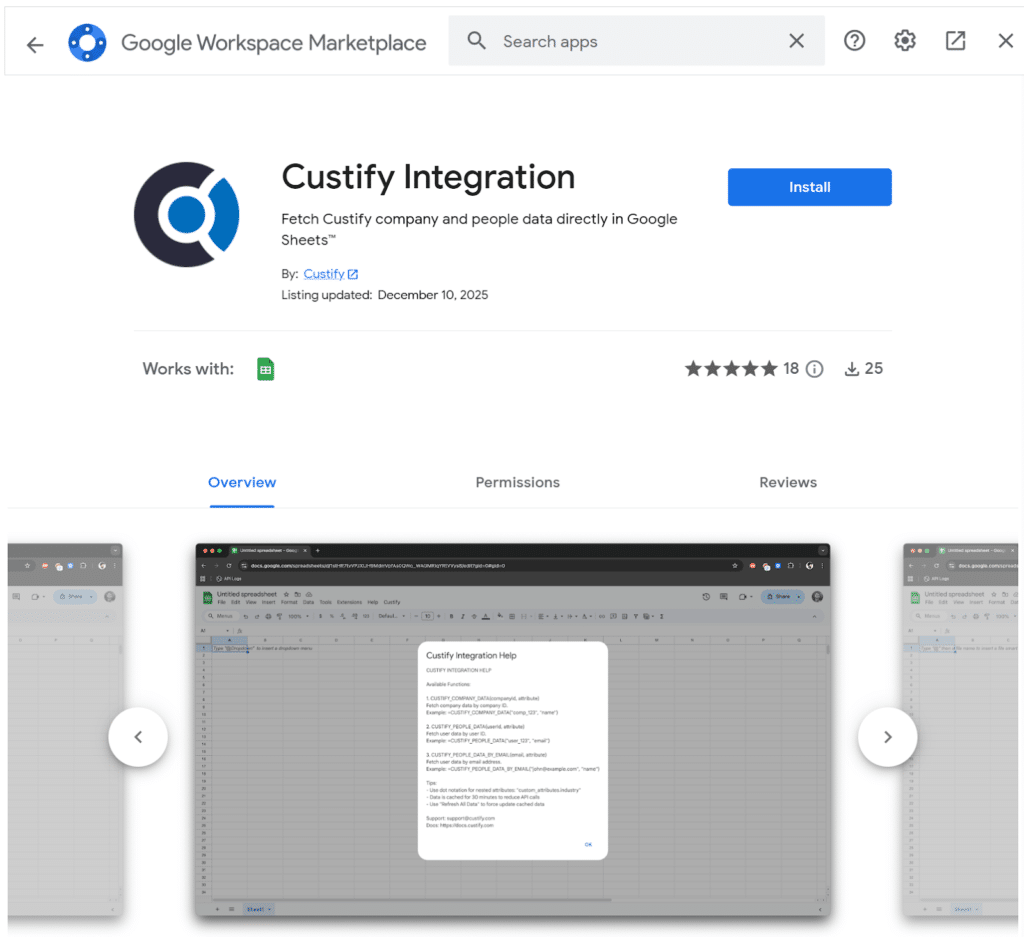
- Search for “Custify Integration.”
- Click Install and grant permissions.
You can install directly from the Google Workspace Marketplace.
After installation:
- Open a spreadsheet.
- Click Custify in the top menu.
- Select Configure API.
- Enter your Custify API Key from Settings > Developer > API Keys.
- Enter your Base URL, usually https://api.custify.com.
- Save and start using formulas.
That’s it. No development work required.